A non-human identity inventory answers one question: which credentials exist in our cloud accounts that nobody is managing? You cannot rotate, restrict or retire a credential you do not know about, so the inventory comes before everything else.
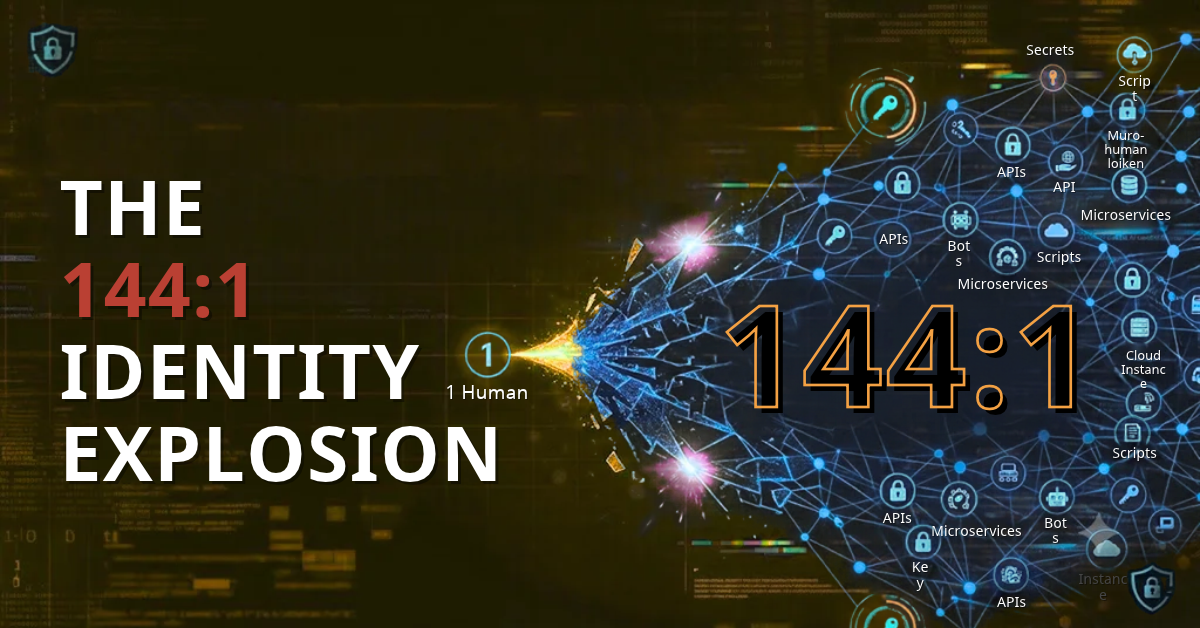
Service accounts, API keys, tokens and certificates now outnumber people in most organisations. They are created by engineers in a hurry, copied into pipelines, and forgotten. Most breaches that involve them are not clever. They use a key that should have been deleted years ago.
What belongs in the inventory
Start with the places credentials are created at scale:
- Cloud IAM: access keys for IAM users (AWS), client secrets and certificates on app registrations (Microsoft Entra), service-account keys (Google Cloud).
- Source control and CI/CD: GitHub App installations, personal access tokens, deploy keys, pipeline secrets.
- Servers: SSH keys in
authorized_keys, service accounts in directories, database logins used by applications. - Certificates: mutual-TLS client certificates and service certificates with expiry dates.
For each credential, record enough to make a decision: provider, type, identifier, the principal it belongs to, when it was created, when it expires, when it was last used, and a hint about who owns it.
Read-only, always
An inventory scanner is a powerful thing to point at a cloud account, so hold it to strict rules:
- Read-only. It lists and gets. It never creates, changes or deletes anything in the account.
- Never reads a secret value. It needs to know that a key exists and how old it is, not what it is. Anything that stores or displays secret values is the wrong tool.
- Least privilege. For AWS that is a short list of IAM read actions; for Entra it is application read access (and audit-log read if you want last sign-in). Name the permission each feature needs, so a missing permission produces a clear message, not a silent gap.
- Opt-in per account, with a scan interval you choose and a limit on how often a person can force a scan.
The signals that matter
Once the list exists, a handful of flags find most of the risk:
| Flag | Meaning | Typical action |
|---|---|---|
| Stale | Not used for a long time (90 days is a reasonable start) | Confirm it is not needed, then retire |
| Never used | Created, never used, and old enough that it should have been | Retire |
| No owner | Nothing says who is responsible | Assign an owner or retire |
| Expiring | An expiry date is close | Rotate or renew before it breaks something |
| Unmanaged | Not under any rotation or governance process | Bring under management |
Be careful with "stale": a key whose last use is unknown is not the same as one that is unused. Some providers only report last use if you grant an extra permission or hold a licence tier. An honest inventory says "unknown" and tells you what is missing, rather than guessing.
Triage into four buckets
Every finding should end up in one of four states:
- Managed: already under a governed process. The inventory should recognise these automatically, for example by a naming marker or a recorded key id, so you are not asked to triage what is already handled.
- Unmanaged: not under control. This is your work list.
- System: a credential the governance tool itself uses, such as its connector credential or a short-lived probe secret. Show it, but keep it out of the list of things to fix.
- Ignored: hidden on purpose, with a recorded reason, and reversible.
The reason field matters. "Ignored" without a reason is how risk gets swept under the rug and found again during an incident.
From finding to control
An inventory that only reports is a spreadsheet with a login. The useful step is turning a finding into a managed identity in one motion: open the finding, assign an owner, link it to the provider, and enrol it in rotation, with the details pre-filled so nobody retypes an account id.
Then close the loop: when a credential disappears from the cloud account, keep the record for a while (90 days is reasonable) so you can see that it was removed, and by when, before it is cleaned up.
Ten-day inventory plan
- Day 1. Pick the three accounts that can do the most damage: the production cloud accounts and your source-control organisation.
- Days 2 to 3. Grant the read-only permissions and run the first scan. Do not fix anything yet.
- Days 4 to 5. Triage. Mark system credentials, link the ones that are already managed, and ignore (with a reason) what you consciously accept.
- Days 6 to 8. Retire never-used and long-stale credentials, starting with the highest-privilege ones. Assign owners to the rest.
- Days 9 to 10. Enrol the credentials that must stay into scheduled rotation, and set alerts for expiry.
Repeat the scan daily. New credentials appear every week, and the inventory is only as good as its last run.
How ZenXPAM supports this
ZenXPAM's credential inventory reads your AWS accounts, Microsoft Entra app registrations, GitHub Apps and Google Cloud service accounts on a schedule, strictly read-only and without ever reading a secret value. It records one finding per credential, flags stale, never-used, ownerless and expiring ones, triages them as managed, unmanaged, system or ignored (with a reason), recognises credentials that are already under ZenXPAM management, and lets you bring any other into rotation with its details pre-filled. Scans have plain error codes, such as a missing IAM permission, each with a step-by-step fix. Separate permissions control who can view findings, who can ignore or link them, and who can turn sources on. See non-human identity governance or book a demo.
FAQ
How is this different from a secrets scanner? A secrets scanner looks inside code and files for exposed values. An inventory lists the credentials that exist in your cloud accounts, with their age and use, whether or not anyone leaked them. You want both.
Will the scan change anything in my cloud account? It should not. A properly built inventory uses list and get calls only.
What counts as stale? A common default is no use for 90 days. Pick a value that fits how the credential is used; a quarterly job's key is not stale after 60 days.
How often should we scan? Daily is a good default. Hourly adds load without much benefit, and weekly leaves new keys unseen for too long.
Do we need this if we already rotate keys? Yes. Rotation covers the credentials you know about. The inventory finds the ones you do not.